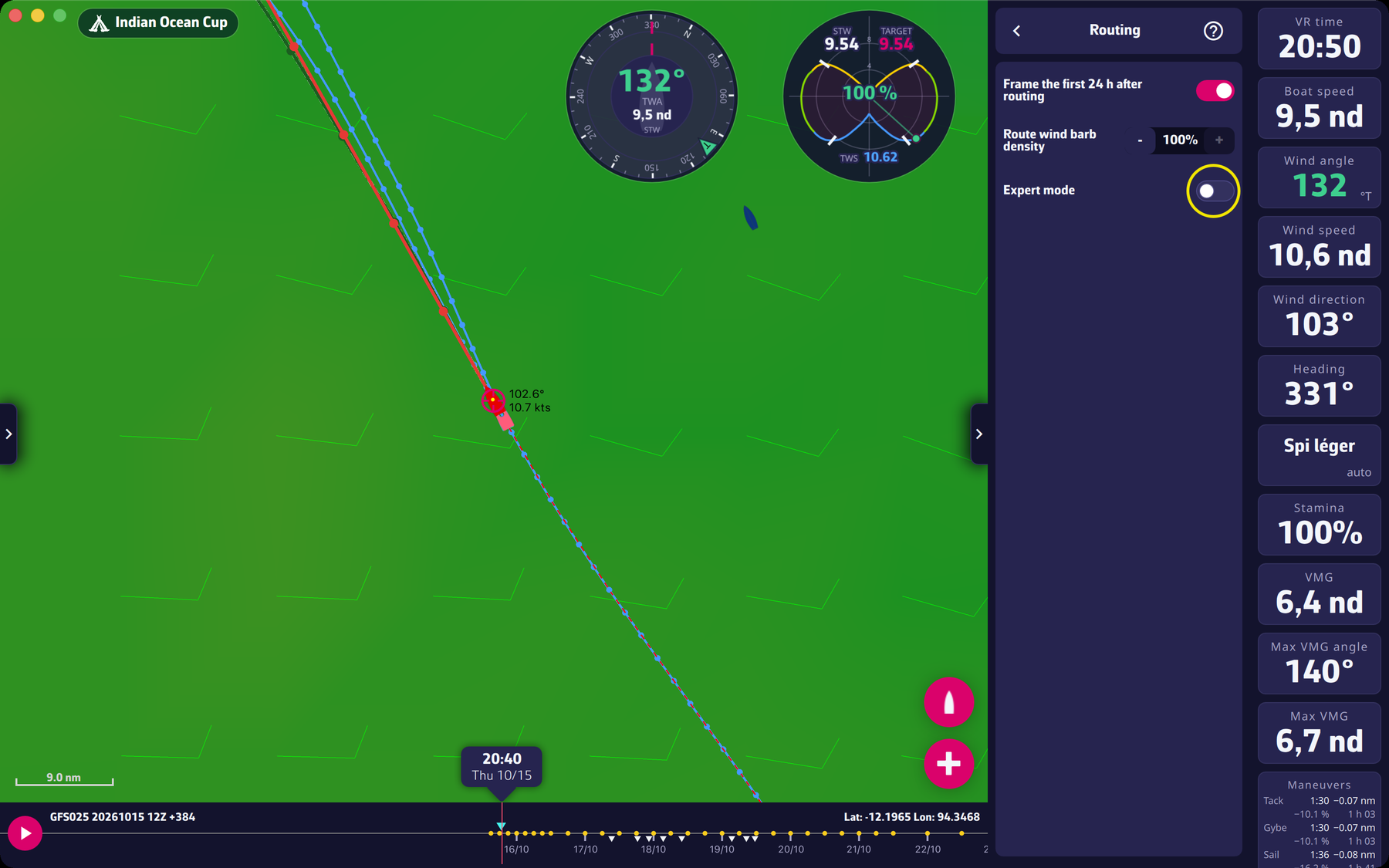
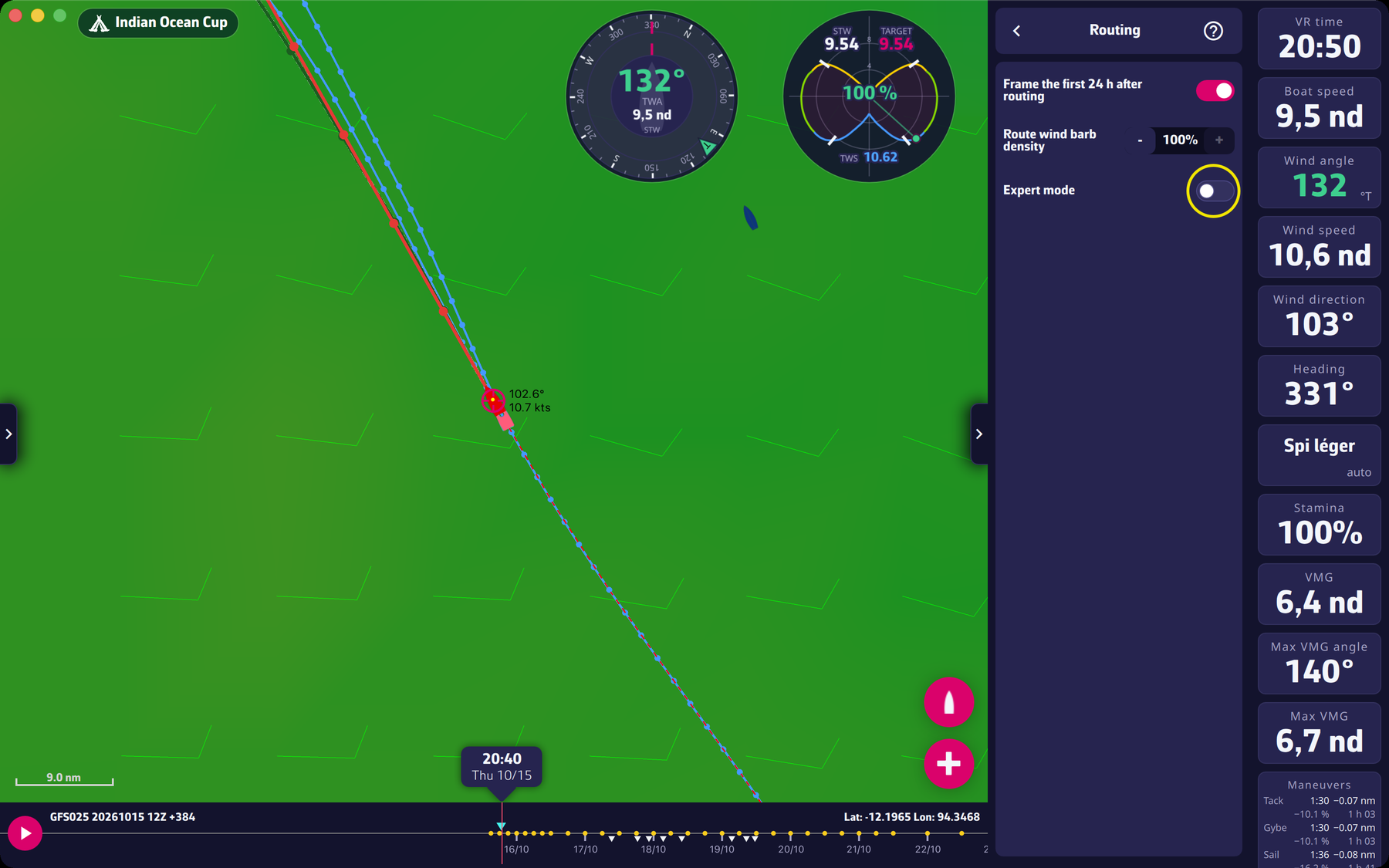
In Expert mode (Settings > Routing, “Expert mode” switch, reserved for Premium subscribers), you can adjust the routing calculation parameters. Here are some guidelines on how to do this best. You can always reset the default values with the “Reset routing parameters to default” button under the settings. We recommend using these defaults in the vast majority of cases.
Max duration
From 1 to 15 days, 15 by default. This is the maximum duration of the routing. You may want to reduce it to understand when a route decision should be made. This can be seen during the routing calculation when the best route switches. For example, on the North Atlantic, from Brittany to the West Indies, you can have a routing that switches from a northern route to a southern trade-wind one. Calculate a routing with a 15 day max and another with an 8 day max, then compare the two routes. If the routes over the first few days are similar, there is no decision to be made immediately. If they differ from the beginning, you have to choose right away.
Sweep angle
From 40° to 360°, 220° by default. This is the scan angle over which the algorithm searches for routes. The larger the angle, the longer the calculations, but the less chance you have of missing the best route. As a general rule, 220° is more than enough. If you notice that your routing passes by the edge of an isochrone (locations reachable in a certain time, drawn in blue), increase this angle. This happens most often in areas of light wind or for very fast boats like Ultims, which can lengthen their route considerably to find favorable winds.
Step angle
“Auto” or from 1° to 5°. This is the angular increment used in the routing calculations. The smaller it is, the more accurate the calculations are, but the longer the calculation time. In “Auto” mode, it is initially at its minimum of 1°. The router can increase it if the processor is slow and the calculations take too long.
Anti-grounding safety pixel
On by default. It prevents the routing from approaching the coast to within 1 pixel. See “Anti-grounding safety pixel: what does it mean?” in this FAQ.
Avoid VR and own zones
On by default. The routing goes around the restriction zones of Virtual Regatta as well as the exclusion zones you drew in the Zones tab. See “How do I route with restricted zones?”.
Polish the first 48 hours only
Off by default. After the isochrones are calculated, the application “polishes” the optimal route (the “Polishing the optimal route” step). This option limits that polishing to the first 48 hours.
Isochrone < 2 h, < 6 h, < 12 h, < 24 h, < 48 h, < 120 h and “Further isochrones”
This is the time step between two isochrones, set separately for each slice of time ahead. The default values are 15 min (< 2 h), 30 min (< 6 h), 1 h (< 12 h), 2 h (< 24 h), 3 h (< 48 h), 6 h (< 120 h) and 6 h beyond. This step increases as you move further out in time because the weather conditions will change by then and it is useless to look for too much precision. Near the coast, it can be interesting to decrease the time step of the first isochrones to stick to the coast. The shorter the time step, the longer the calculations.
Follow the course
This is not in Settings: it is a switch in the “Routing to target” window (Expert mode, when the race has a finish). When on, the routing follows the marks of the course.
Have fun changing these parameters to get the best routings. Remember that we spent a lot of time optimizing the default values: they are the best in the vast majority of cases. When in doubt, don’t hesitate to press the “Reset routing parameters to default” button.
To go further: Expert mode and Settings.