Your first routing in a few steps
BeginnerThe essentials
A routing goes from the position of your boat to a target that you place on the map. Four steps are enough.
- Put the target at the centre of the map. Move the map until the finish you want is at the centre of the screen. On a touch screen, a sight button shows a cross at the centre to aim more easily.
- Tap the red “+” button at the bottom right of the map.
- Name the target. The first time, the “Target” window asks: “Please enter the name of target”. Type a name in “name of target”, then tap “Ok”. The calculation starts at once. The following times, the “Routing to target” window lists your targets: tap “Routing” next to the one you want, or “Add a target” to save the current centre of the map.
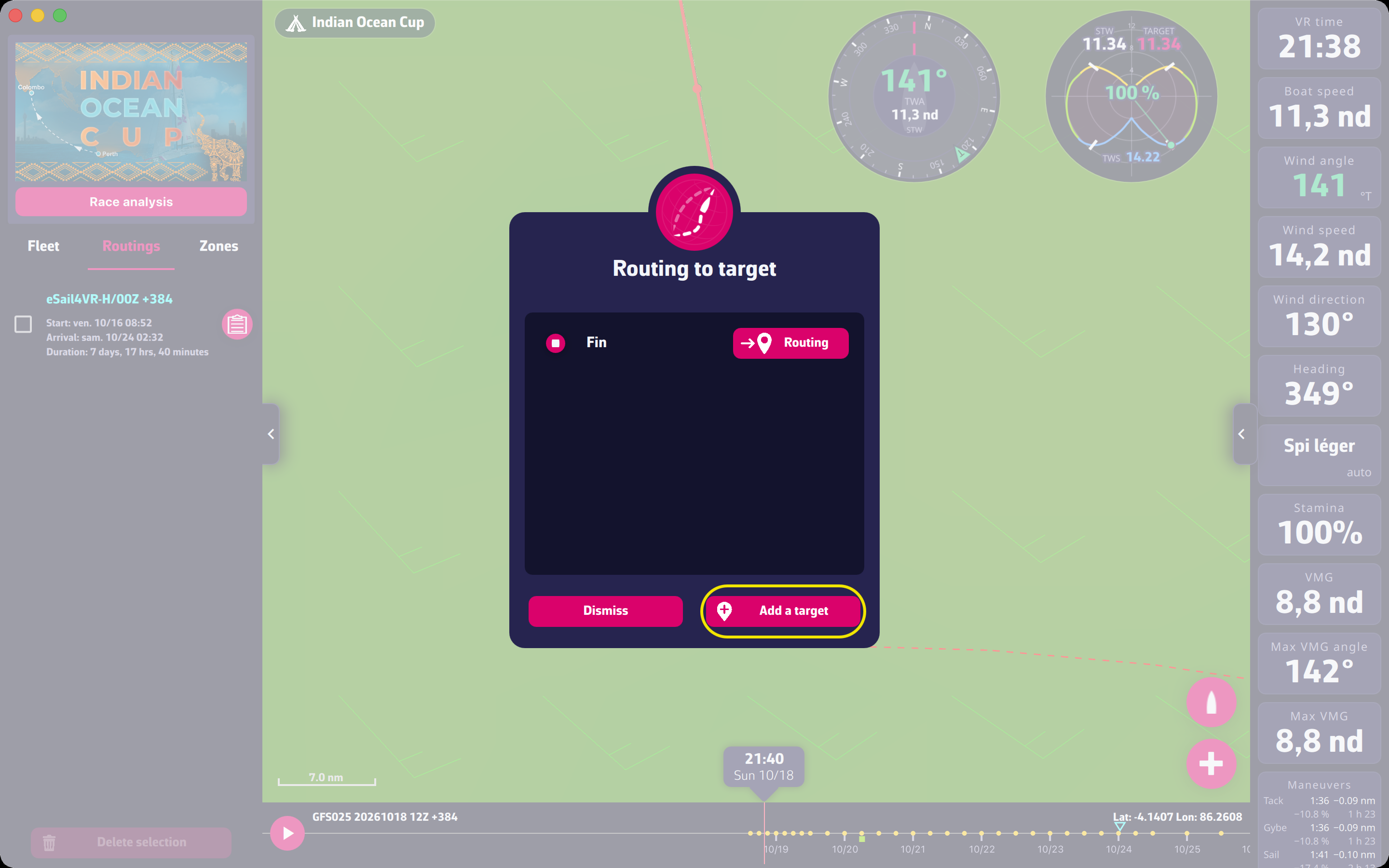 The “Add a target” button in the “Routing to target” window
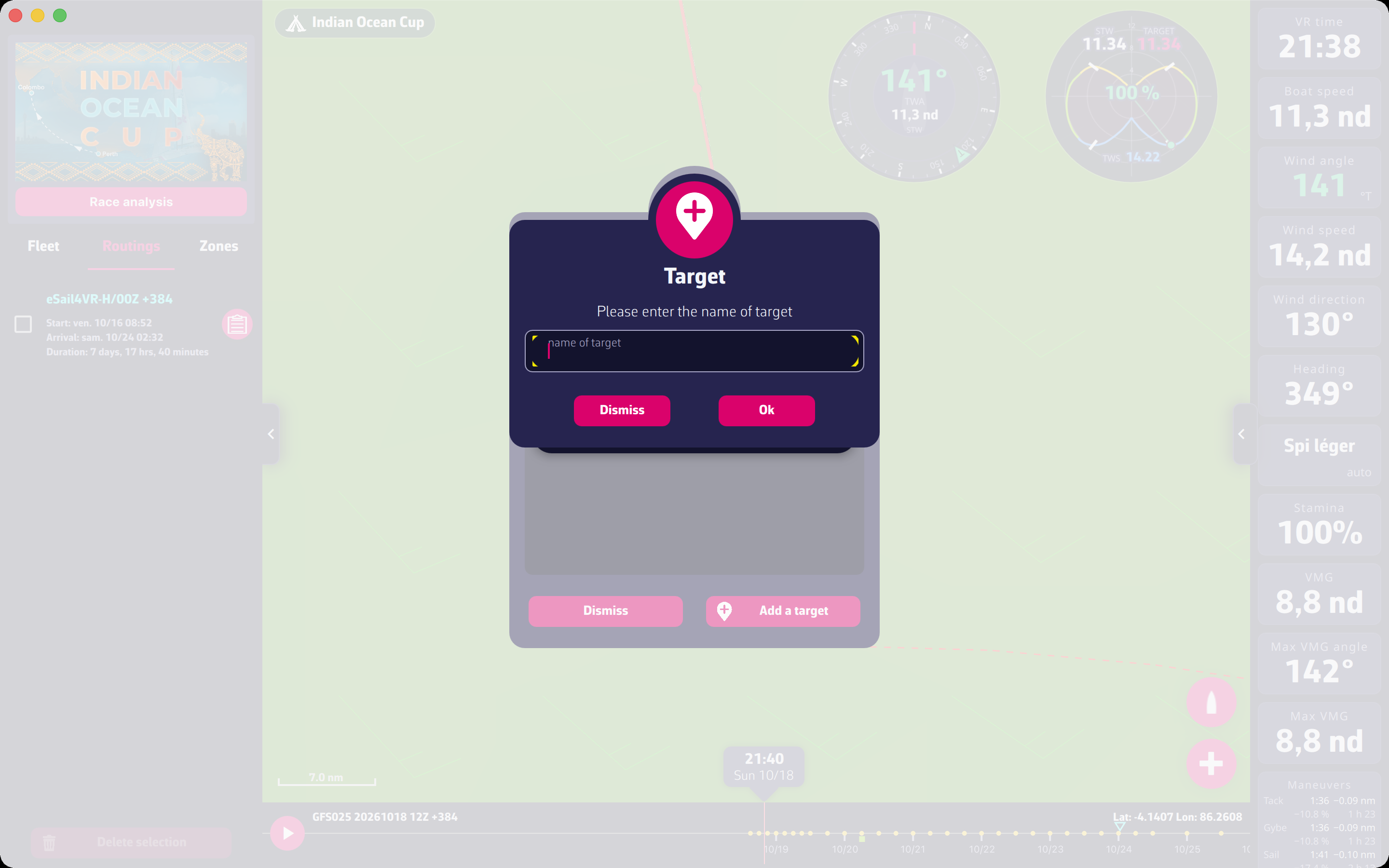 The “Target” window: enter the name of the target
- Wait for the result. A label under the “Cancel routing” button reads “Preparing the routing”, “Calculation in progress” then “Polishing the optimal route”. The “Cancel routing” button stops it.
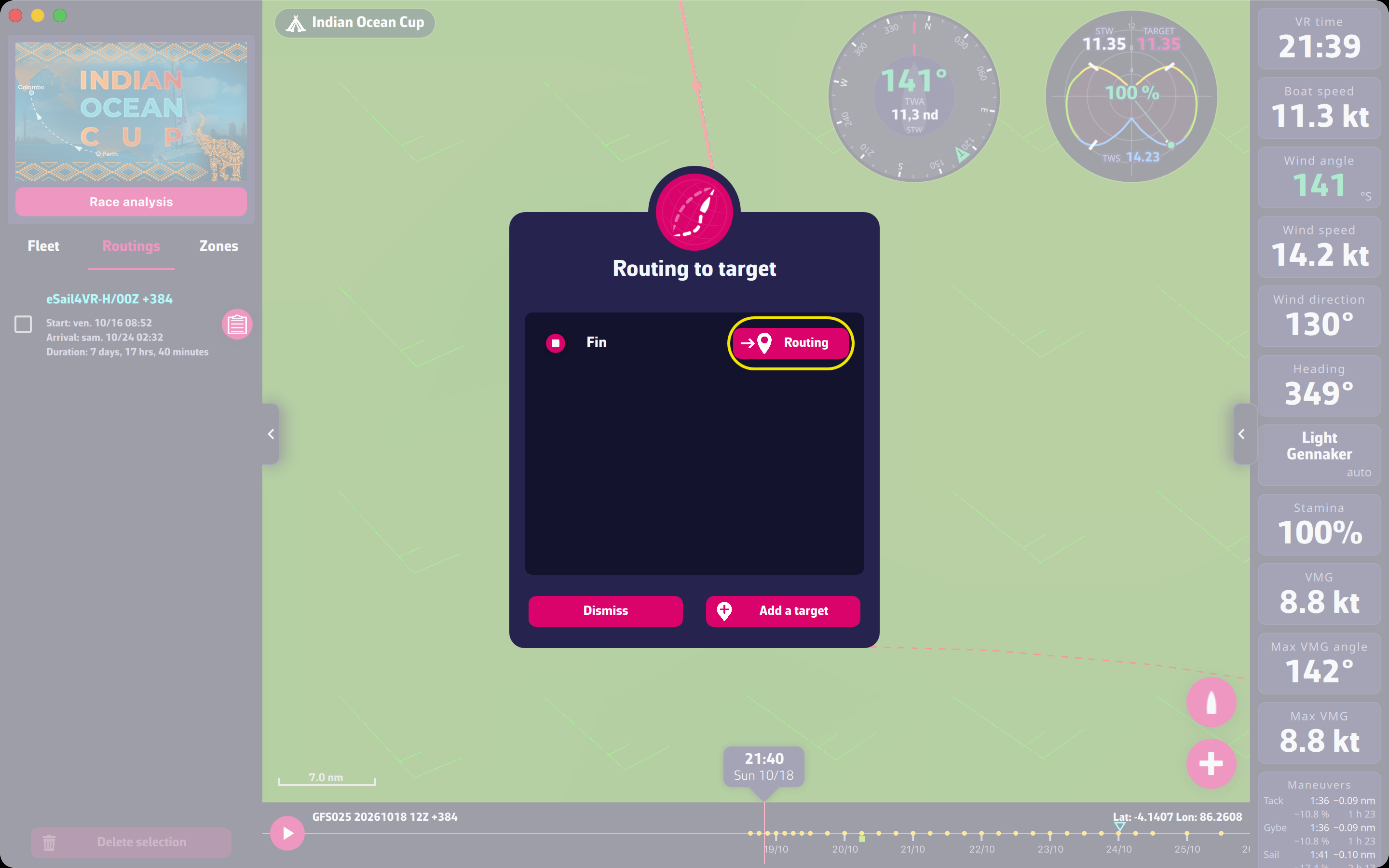 The Routing to target window
The routing appears on the map and in the “Routings” tab of the left panel, with its “Start”, “Arrival” and “Duration”. The table button on the row (its window is titled “Routing table”) opens the hour-by-hour detail.
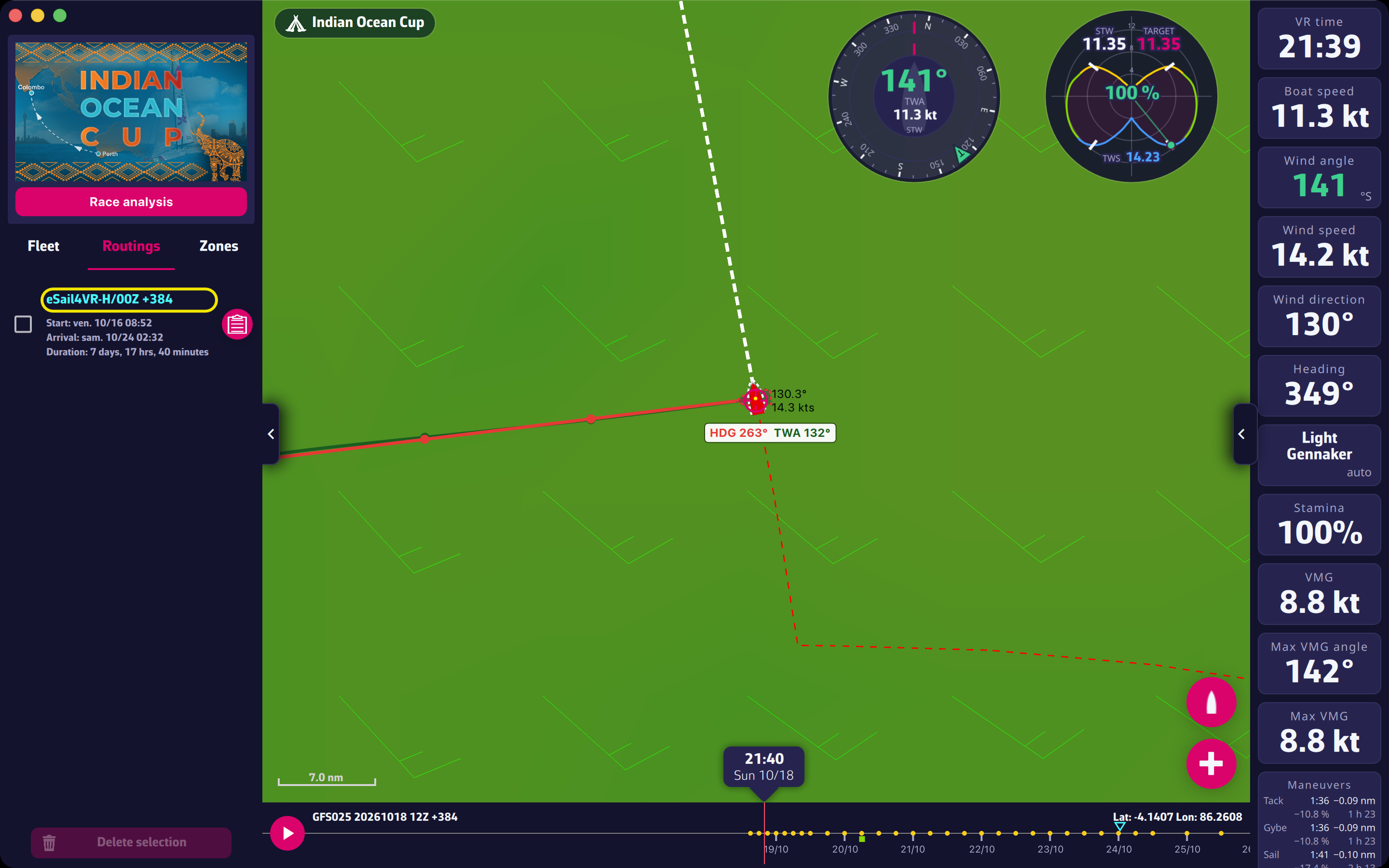 A routing on the map and in the Routings tab
Sending the route to VR. On the routing’s row, the send button asks “Please confirm the programming of the routing on the VR servers”. Sending orders requires a Premium subscription; without it the app offers to subscribe. To edit the orders before sending, see Orders.
Going further
Two checks before the calculation. If the last boat position received from VR is more than 10 minutes old, the app refuses: “The last boat position received from VR is more than 10 minutes old. Please, wait for a position refresh before making a routing calculation.” If it has not received a position yet: “It looks like you have not received the boat position from VR yet…”. Wait for the next refresh.
Records not started. For a record whose boat has not left yet, the “+” button first opens a window to choose the start time of the routing.
The send button only shows on a recent routing. It disappears 22 minutes after the calculation, and only for your own routings. If the position used for the calculation is 12 minutes old or more, the app warns you and advises calculating again before sending.
Deleting. In the “Routings” tab, tick one or more routings then “Delete selection”; a confirmation is asked.
Restricted races. For some races the organiser restricts sending: “The race organiser has restricted sending orders from eSail4VR for this race.”
If the calculation stops without a result. The message gives the reason (maximum duration, end of the forecast, target too close to land…). The list is in the FAQ: What are these error messages in eSail4VR?. The calculation settings are described in Routing.