What is weather routing?
BeginnerThe essentials
A weather routing looks for the fastest route between your boat’s position and a finish point, given the forecast wind and the performance of the boat. The shortest route is almost never the fastest under sail: the right path goes around areas without wind, picks the tack that benefits from a wind shift, and avoids tacking too often.
It relies on three ingredients.
- The weather forecast, which comes as a GRIB file (a file format holding the forecast wind, hour by hour, on a grid of points). This is what the app downloads at first launch, then regularly.
- The polar of the boat: a table giving the boat speed for each wind angle (the TWA, True Wind Angle, the angle between the boat’s heading and the direction the wind comes from) and wind strength (the TWS, True Wind Speed). eSail4VR reads it from your boat’s data in Virtual Regatta.
- The course and its constraints: the finish, the coast, the race’s exclusion zones, the ice limits and your own zones.
How the search works: isochrones. An isochrone is the line joining all the places the boat can be after the same sailing time. The calculation moves forward in time steps: from the previous front, it sends the boat in every possible direction, works out how far it gets with the wind forecast at that moment and the polar, then keeps only the most advanced points. It repeats until it reaches the finish. It then walks back point by point, from the finish to the start: that is the calculated route.
What the diagram shows. The coloured background is a fictitious wind forecast, with its arrows: a calm zone (blue and green) and a strong-wind zone (orange). Behind the island, the island screens the wind (the wind shadow): the wind is weaker there, and it strengthens a little on the sides. Grow the isochrones with the “Time step” slider: they tighten in the calm zone, because the boat covers little distance in an hour there, and stretch in the strong wind. The island blocks any path that crosses it: the isochrones go around it on both sides and meet behind it, forming a fold. The calculation stops as soon as the finish is reached. The “Show the optimal route” box is ticked: at each isochrone, the route starts from the point of the isochrone closest to the finish by sea (distance going around the island) and walks back to the start. This best point may switch sides of the island from one step to the next. Once the finish is reached, the route goes around the island on the faster side, while the straight line (dashed grey) is blocked by the island. Change the “Weather situation”, the direction or the strength of the base wind to see the route change.
Why you must calculate again. Forecasts are renewed several times a day. A route calculated this morning rests on a forecast that has changed since: so you run a routing again regularly, especially before an important moment.
The limits. A forecast is uncertain, and more so the further ahead it looks (beyond a few days it holds up less well). A routing is therefore not a promise: it is the best route according to the forecast of the moment.
What eSail4VR does. The app calculates the routing, shows it on the map, then, with a Premium subscription, sends the orders to Virtual Regatta so that your boat follows them.
Going further
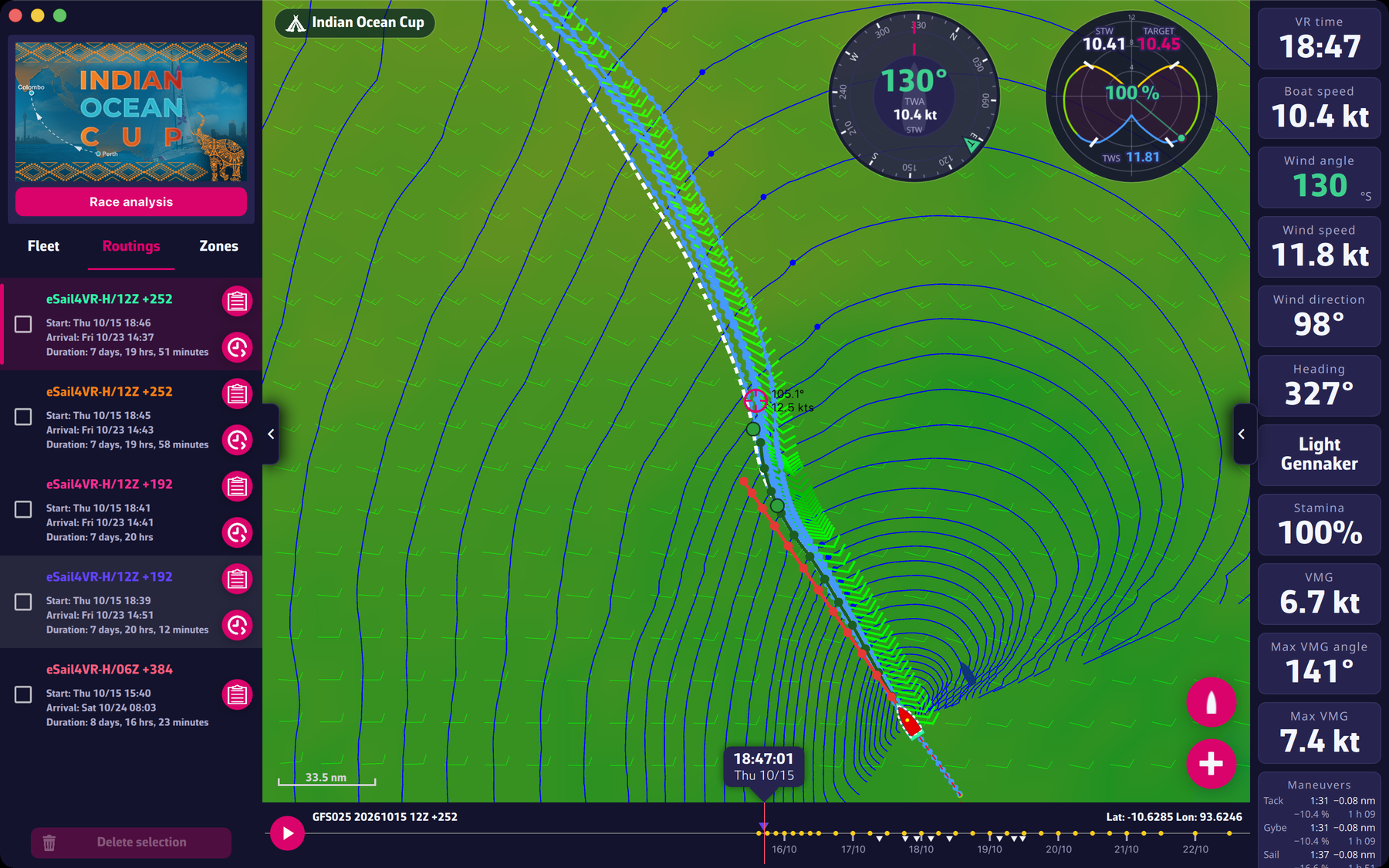 A calculated route on the map, with its isochrones
In the app. The calculation goes through three stages shown on screen: “Preparing the routing”, “Calculation in progress”, “Polishing the optimal route”. The “Cancel routing” button stops the calculation. Each point of the route keeps a reference to the point it comes from, which is how the route is walked back from the finish to the start. Isochrones can be displayed with Expert mode (see the Expert mode chapter).
Weather data. The GRIB file carries an identifier such as “GFS025”, meaning the GFS model at 0.25° resolution. The FAQ states that Virtual Regatta uses the same model: see How are winds calculated in VR and eSail4VR? and What are the weather update times?.
Constraints taken into account. The coastline is downloaded at first launch (“Downloading the coastline…”). The race zones and the ones you draw in the “Zones” tab are avoided as long as the “Avoid VR and own zones” option is ticked in the Routing menu; if it is unticked, the app says so after the calculation.
A maximum duration. The routing stops if it reaches its “Max duration” or the end of the forecast without reaching the target; it then says so in a message.
Next in the guide.