Reading the result of a routing
BeginnerThe essentials
A finished routing is shown in three ways.
- On the map: a colored line, with wind barbs along the route. Each routing has its own color. A small boat of the same color moves along the route when you move the timeline: it shows where the boat would be at the time displayed.
- On the timeline: a filled triangle marks the start of the routing, a hollow triangle its end.
- In the “Routings” tab of the left pane: one row per routing.
Each row of the “Routings” tab shows:
- the name, in the form “name/06Z +384” (the name, then the weather run used, see The weather file);
- “Start: " (the departure time), “Arrival: " (the expected arrival time) and “Duration: “;
- the routing table button (see The routing table), which turns green for the last routing sent to VR;
- the send button to VR, for your own recent routings (see Sending to VR).
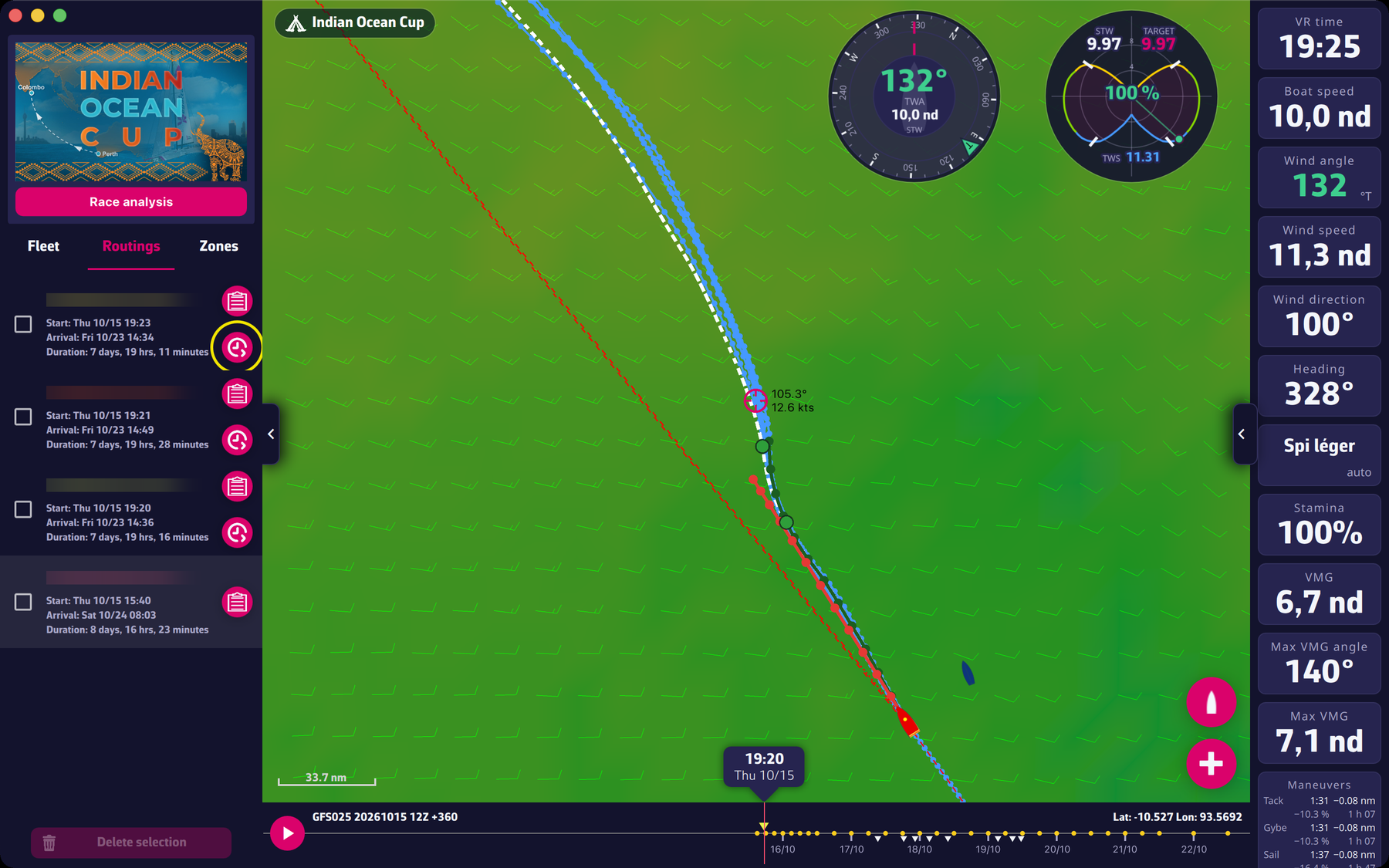 The Routings tab with one routing: start, arrival, duration and buttons
Going further
Selecting a routing. Touching the row of a routing selects it: a colored bar appears at the left of the row. In Expert mode, its isochrones are displayed and the instruments take the state of the boat on that routing, in its color. Touching the row again deselects it.
Deleting. Tick the box at the left of one or several routings, then “Delete selection”. The application asks “Please confirm the deletion of the routing” (or “of routings”).
Finding the time of a passage. A click on the map near a route moves the timeline to the time that routing passes that spot.
The send button is missing. It only appears for your own routings, and only while the boat position used for the calculation is recent (less than 22 minutes). See Sending to VR for the thresholds.
Several routings. See Several routings.