The left panel: Fleet, Routings, Zones
BeginnerThe essentials
The tab on the left edge of the screen opens and closes the panel. At the top, the race picture (tapping it reopens the race selector) and, when the race has an analysis, the “Race analysis” button. Below, three tabs.
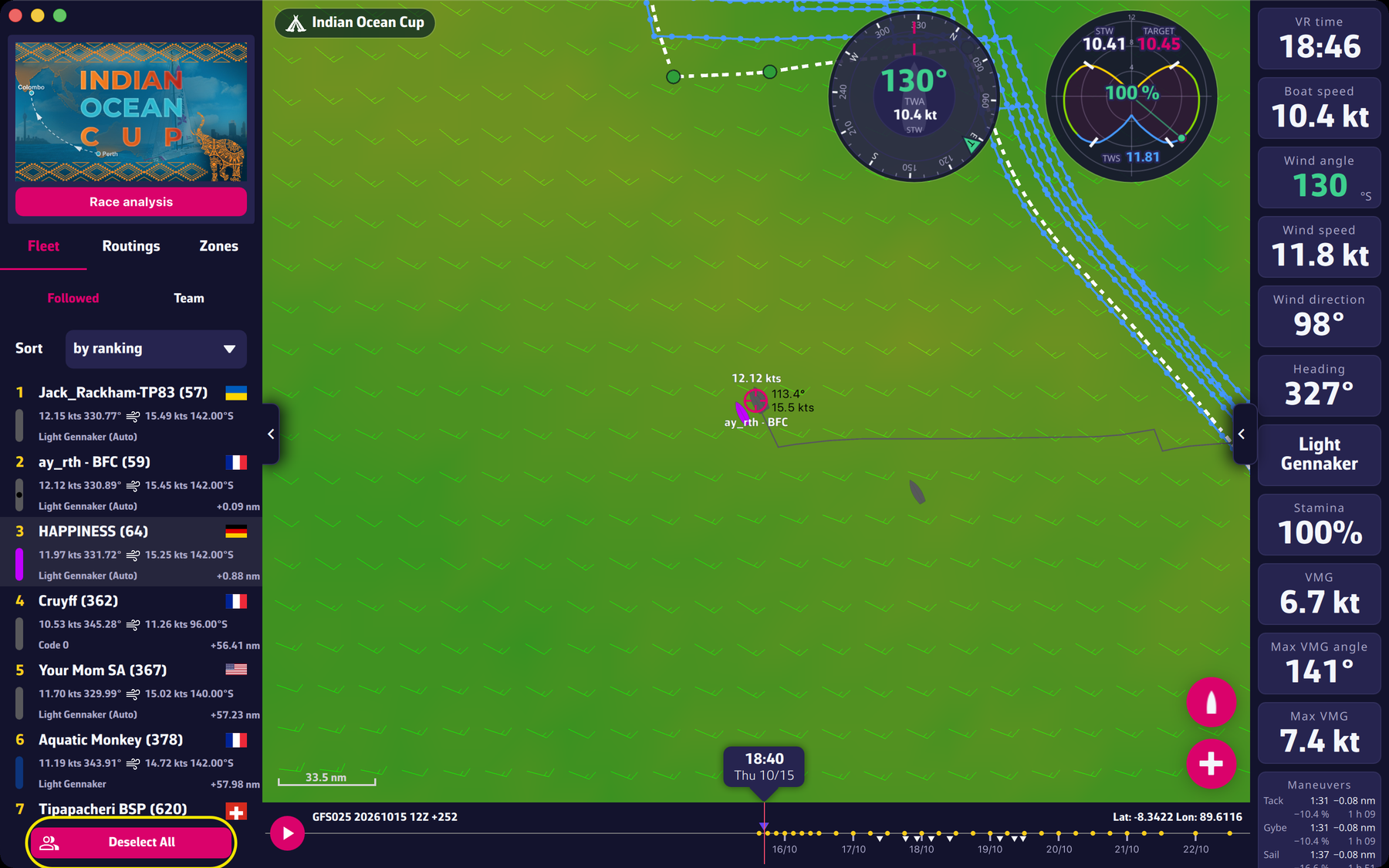 The left panel, Fleet tab
“Fleet”: the players you follow in Virtual Regatta.
- The choice “Followed” or “Team” (your team).
- “Sort”: “by ranking”, “by speed”, “by name” or “by sail”.
- Each row gives the name (and the rank in brackets), the flag, the speed and heading, the wind (strength and angle, followed by “°P” port or “°S” starboard), the sail and the gap in nautical miles from the best of the list ("+12.30 nm").
- Tapping a row centres the map on that player and shows or hides their track. “Deselect All” hides all tracks.
“Routings”: your calculations, from the most recent to the oldest.
- Each row has the colour of its line, the player name and the forecast used, then “Start”, “Arrival” and “Duration”.
- The table button opens the routing detail; the send button sends the orders (see Your first routing).
- The check box on the left picks routings to delete: “Delete selection” asks for confirmation.
“Zones”: your personal exclusion zones for the open race, which the routing goes around (see Zones).
Going further
Followed players and team. The list comes from your Virtual Regatta account: the app shows every followed player VR sends it, with no limit on its side. To follow one more player, use VR. Your own boat is in the list, in the accent colour. See the FAQ: Why can’t I see my followed competitors displayed?. The page The fleet and followed boats details these gestures.
Selecting a routing. With Expert mode (and a Premium subscription), tapping a routing row shows its isochrones: the row is tinted and an accent bar appears on its left; tapping it again hides them (see Expert mode). Without Expert mode, this gesture shows nothing. During a calculation, selection is disabled.
Zones tab. The messages of the tab: “Choose a race to draw its exclusion zones.”, “No exclusion zone for this race yet. Draw one on the map: the routing will go around it.”, “The routing goes around the zones that are switched on.” The “New zone” button changes to “Drawing on the map…”; each zone has an on/off switch; tapping its name centres the map on it, and three icons edit its outline on the map (a marker with a pencil), rename it (“Zone name”) and delete it (“Please confirm the deletion of the zone”).
Width and closing. The panel is 272 points wide. In portrait it covers the map; tap the map to close it.