Overview of the screen
BeginnerThe essentials
The eSail4VR screen has six areas, plus the settings panel on the right edge.
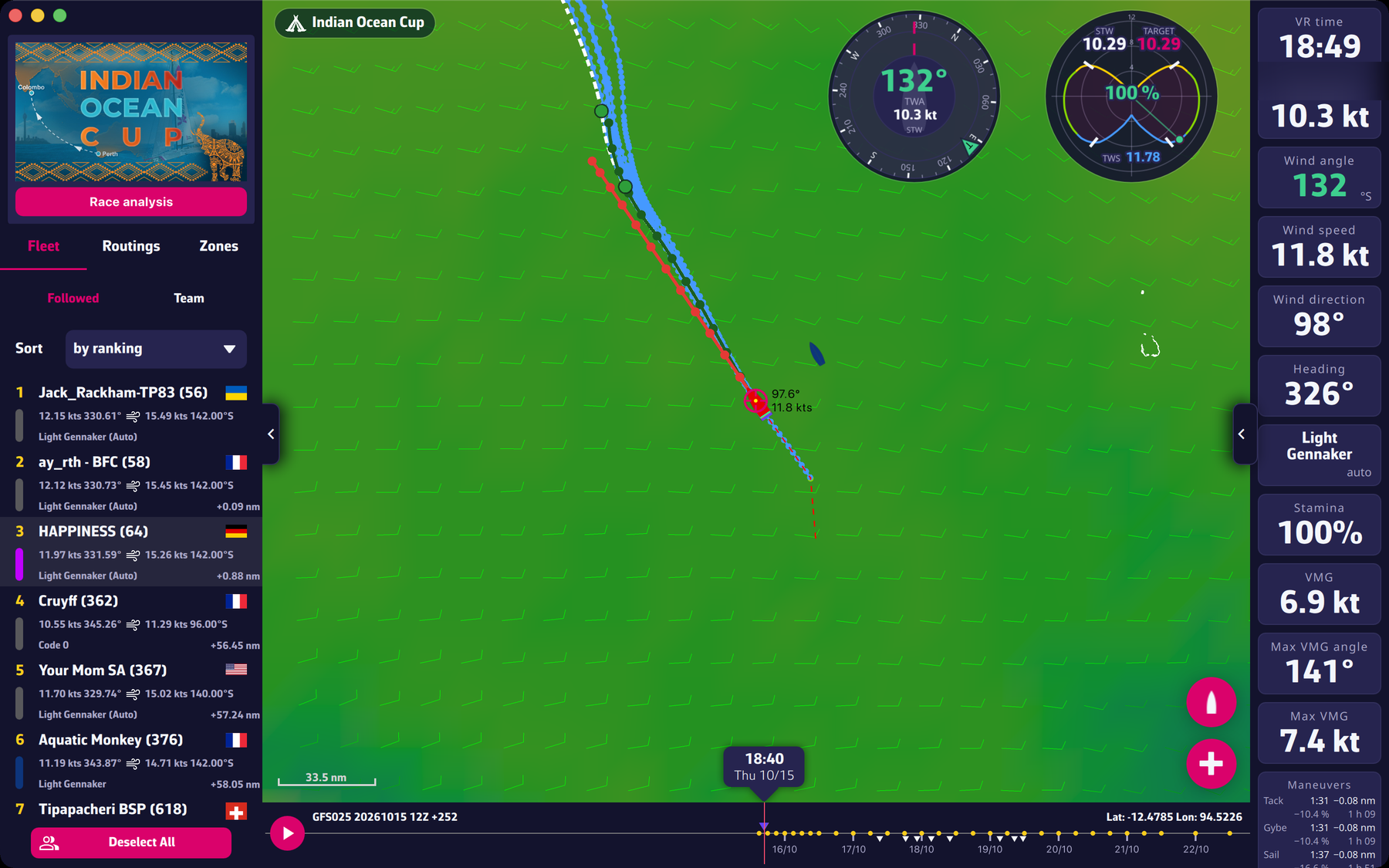
- The map. in the centre: the globe with the weather, your boat, the fleet, the course and your routings.
- The race pill. at the top left of the map: the name of the open race. Tapping it reopens the race selector.
- The left panel. with three tabs: “Fleet”, “Routings” and “Zones”. It opens and closes with the tab on the left edge.
- The instruments. on the right: a column of tiles (speed, heading, wind…) that you can choose and arrange.
- The timeline. at the bottom: the time axis, with the play button. At the bottom of the map, in the centre, the bubble showing the time displayed.
- The buttons on the right of the map. the red “+” button for a routing and the boat button to recentre.
- The settings panel. everything else is in the settings panel, opened by the tab on the right edge.
Going further
Detailed pages. The left panel, The instruments, The timeline and playback, The race pill and the buttons, The settings panel.
Discreet information. A line scale is drawn at the bottom left of the map. On the right of the timeline are the coordinates of the centre of the map (the position a target placed there would have), in the format chosen in the settings. On the left of the timeline, the name of the weather forecast displayed, for example “GFS025”.
An extra button without a subscription. As long as the Premium subscription is not valid, a round button with a cart icon shows at the top right of the map: it opens the subscription window.
Adapting to the screen.
- In portrait, or in a narrow window, the panels cover the map instead of pushing it, and tapping the map outside a panel closes it. The instruments become a band at the top.
- On a small screen (phone or small tablet) held in landscape, the timeline becomes a column on one side, to leave the full height to the map.
- If the window is too narrow for both panels, opening one closes the other.
- On a touch screen, a sight button appears on the right of the map (see The race pill and the buttons).