The timeline
BeginnerThe essentials
The timeline is the strip at the bottom of the map. It spans the whole forecast, at 72 pixels per day. The vertical red line marks the time shown: the wind, the boats and the routings are drawn at that time.
- Drag the axis to move forward or back in time.
- Click or tap a point of the axis to go there: the map jumps in 0.3 second, rounded to the full hour.
- The time bubble, bottom center, shows the day and time displayed. Pressing it brings you back to the current time; at that moment the time is shown with seconds.
- The round button with a triangle, on the left, starts the playback: time runs, then loops.
- Clicking on the map near a routing also brings the timeline to the time that routing passes that spot.
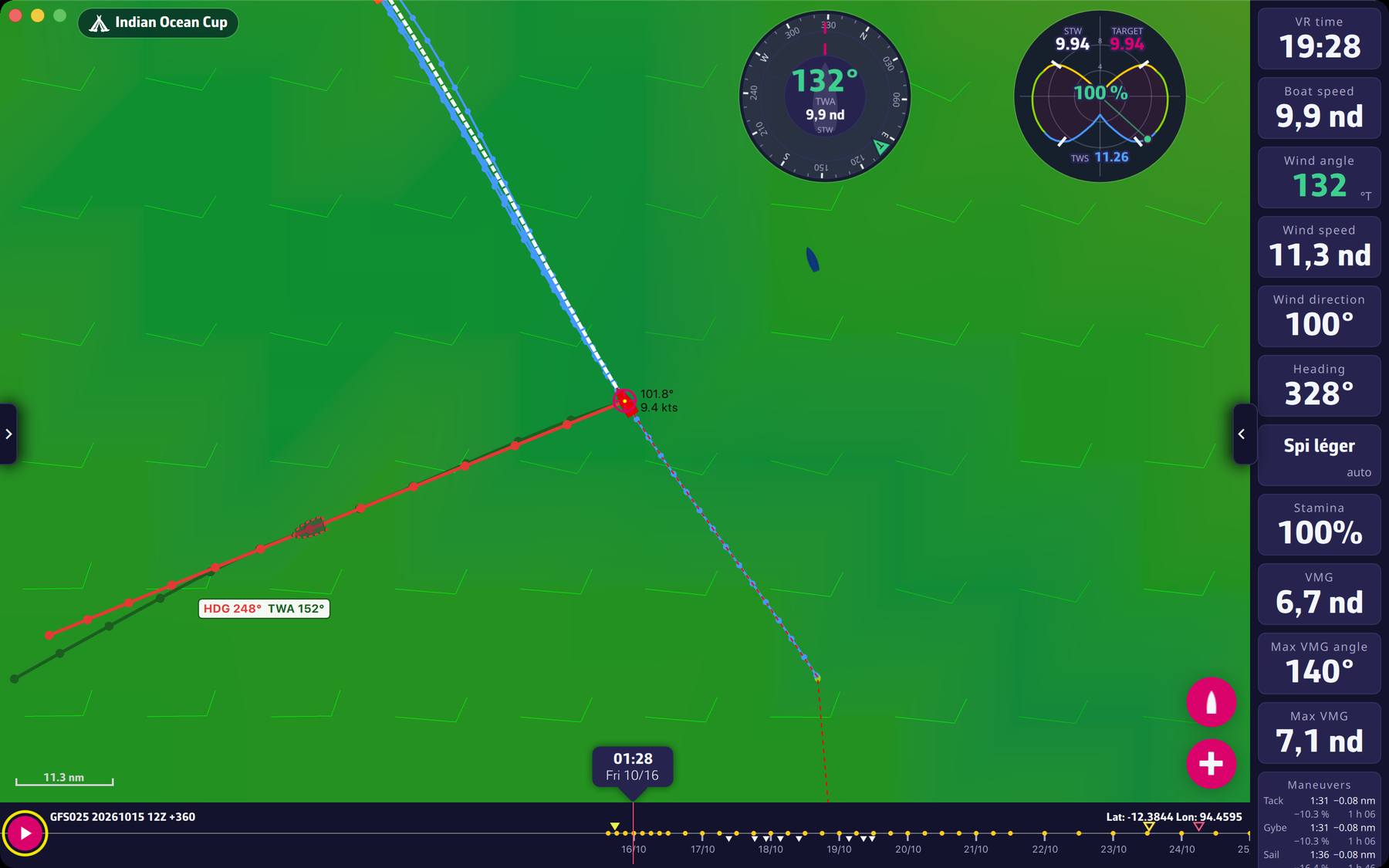 The timeline with the file identifier, the red line and the play button
Going further
What the strip shows.
- Top left: the weather file identifier (see The weather file).
- Top right: the coordinates of the point of the map at the center of the screen, in the format chosen in the settings (“Coordinates”).
- Above the axis, a filled triangle marks the start of each displayed routing and a hollow triangle its end, in the color of the routing.
- Under the axis, the maneuvers of the orders the boat holds: a tack points up, a gybe points down, and a sail change is a square in the color of the new sail.
- On the axis, an orange stretch flags the passages where the sails must be held by hand (see Reading an order row).
Playback. It runs from the start of the first displayed routing to the end of the last; with no routing, it covers the whole forecast. One loop takes about 30 seconds, at 20 frames per second. Touching the axis stops it.
On a phone held in landscape. The timeline becomes a column on the side of the screen, the future upwards, to leave the full height to the map. The time shown is then at the top of the column; pressing it brings you back to the current time.
On a touch screen. The strip grows while you touch it, then returns to its size about 2 seconds later.