Wind display: barbs and particles
BeginnerThe essentials
The map shows the wind at the time of the timeline, in one of two ways: “Settings” > “Display” > “Wind mode”.
- “Barbs”: one small symbol per grid point. The shaft gives the direction; the short and long strokes at its end give the strength.
- “Particles”: traces flowing along the wind, faster and longer when it blows harder.
- A colored background (“Wind gradient color”) adds the wind speed as a tint. It is switched off with the switch of the same name.
Reading a barb: a short stroke is 5 knots, a long stroke 10 knots, a filled triangle 50 knots. Strokes add up: one triangle and two long strokes make 70 knots. Below 2.5 knots, the barb shrinks to a dot.
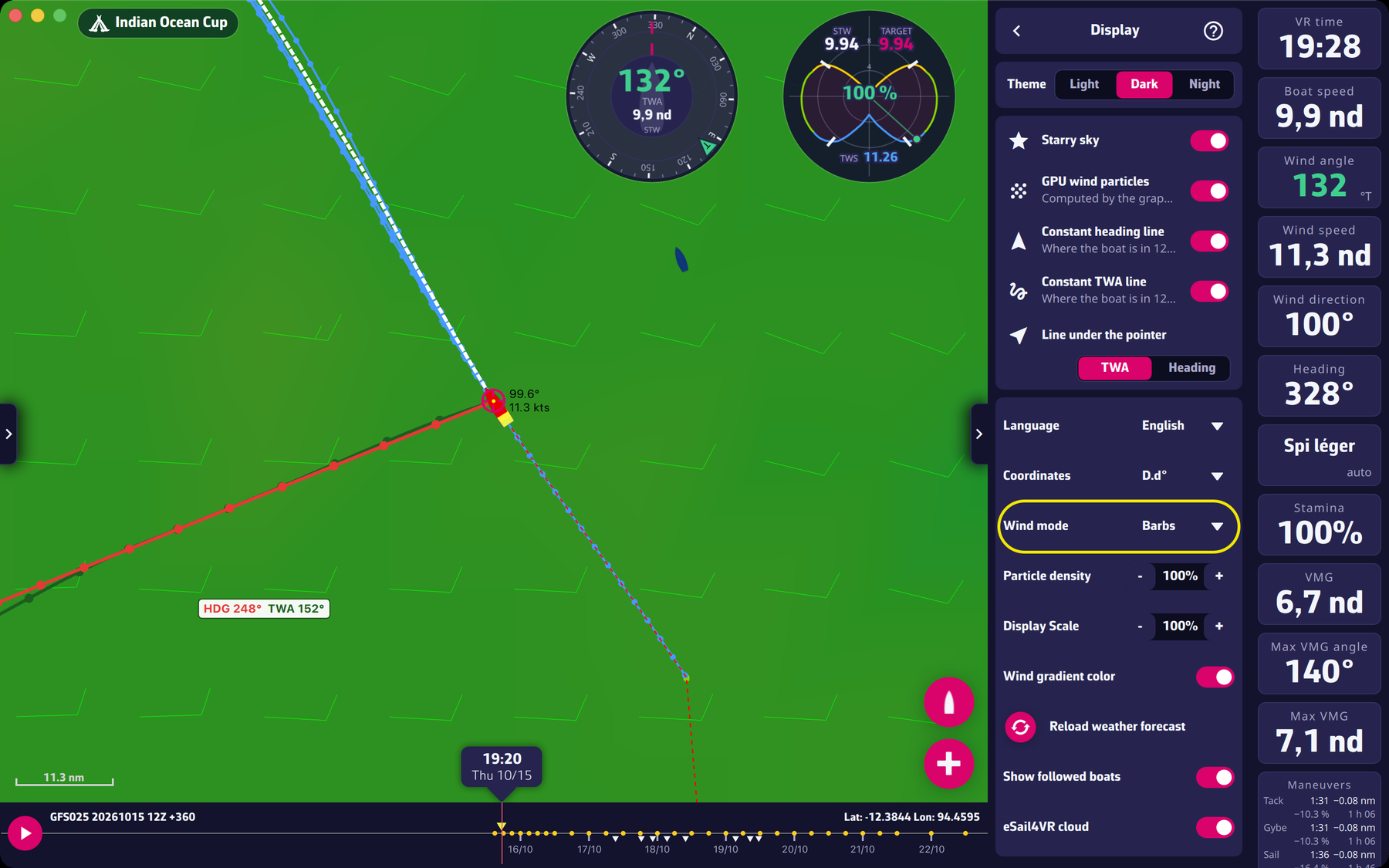 Settings > Display: wind mode, particle density, wind gradient color
Going further
The settings of the “Display” page.
- “Wind mode”: “Barbs” or “Particles”. Switching from one to the other is gradual.
- “Particle density”: from 10% to 400%, in steps of 10, 100% by default. The higher the density, the busier the map and the harder the machine works.
- “Wind gradient color”: shows or hides the colored background that follows the wind speed.
- “GPU wind particles” (below “Starry sky”, with the note “Computed by the graphics card”): hands the movement of the particles to the graphics card (on by default; switched off, the app uses its other particle system).
- “Reload weather forecast”: see The weather file.
Route barbs. Along a routing, the application also draws wind barbs. Their number is set in “Settings” > “Routing”: see Setting the routing display.
What the value represents. The wind displayed is interpolated between the forecast times of the file at the time of the timeline, with the same logic as the routing: see How the wind is computed. Units are VR’s: knots and true degrees.