Drawing and editing a zone
BeginnerThe essentials
- Open the “Zones” tab of the left-hand drawer and tap “New zone”. In portrait orientation, the drawer closes to free the map.
- A “Create Zone” panel appears at the top of the map. Place the corners of the zone one by one: tap (or click) the map.
- Once there are at least three points and no sides cross, the “Finish” button becomes active. Tap it: the zone is created as “Zone N”, switched on, and drawn in orange.
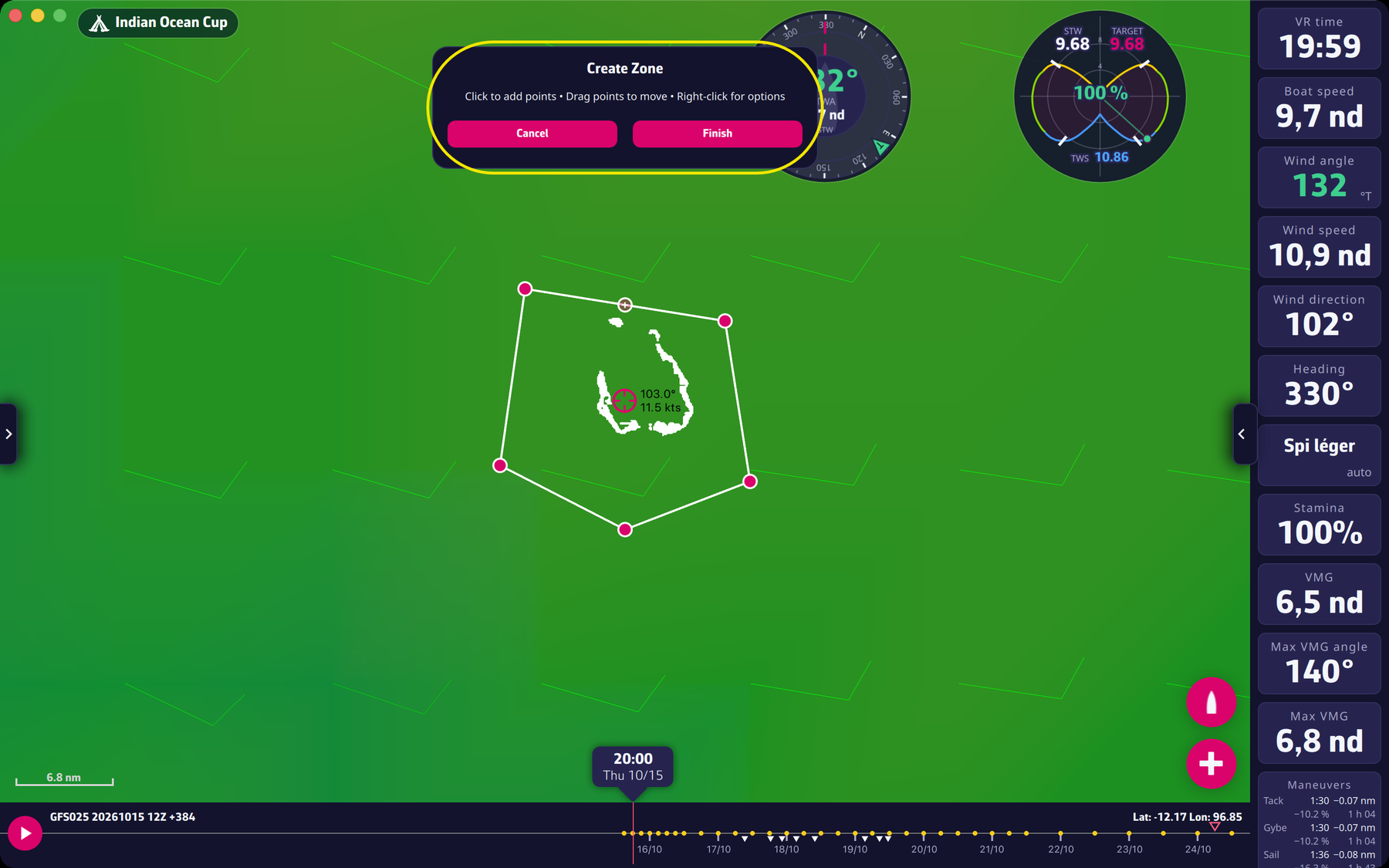 Drawing a zone: the panel, the points and the white outline
“Cancel” drops the drawing and saves nothing.
The gestures while drawing, as the panel recalls them:
- touch: “Tap to add points • Drag points to move • Tap a point for options”;
- mouse: “Click to add points • Drag points to move • Right-click for options”.
The outline being drawn is white, with a disc at each corner; once finished, the zone turns orange.
Going further
Inserting a point on a side. Bring the pointer close to a side: a disc marked “+” appears on it. A click (or a tap) inserts a new corner there. The side that closes the zone only exists from three points.
Moving a point. Drag its disc. With a finger, the point sits a little above the finger so that it stays visible.
Deleting a point. Right-click the disc, or simply tap it with a finger: a menu offers “Delete point”.
The map menu. A right click elsewhere on the map opens a menu with “Finish zone” (active when the zone is valid) and “Delete zone”. For a zone being created, “Delete zone” drops the drawing; for an existing zone being edited, it deletes the zone.
A valid zone. It needs at least three points and no side crossing another. A point that would make two sides cross is refused: nothing happens. Deleting a point can, however, leave a crossing: that is allowed, but “Finish” stays disabled until the outline is fixed.
Editing an existing zone. In the “Zones” tab, the edit icon (a pin with a pencil) re-centres the map on the zone and reopens its outline: the panel then reads “Edit Zone” and the gestures are the same. “Finish” saves the new corners. During the edit, the outline shown is the draft, and a routing started at that moment does not avoid the zone.
Changing race in the middle of a drawing drops the drawing. While a routing is being calculated, you cannot start a drawing or edit a zone.
Around the 180° meridian. A zone can straddle the antimeridian: its longitudes are kept continuous (from 170° to 190°, for instance) so that the crossing and inside tests stay right.
Placing the corners. The sides join your points two by two. To go around a headland or an island, place the corners close enough to the outline for the zone to cover what you want to forbid, and check it by zooming in on the map. For the routing to avoid it, the zone must be switched on in the “Zones” tab: see avoiding zones.